


Below you will find instructions on how to approve Key Requests where you are the supervisor.
Go to https://internal.metro.ucdavis.edu/index.php?showpage=keyrequests

- Click on the desired entry to review.
Please review the Key User Information and update if necessary.

To Approve or Deny a key, please click Select and make your desired selection. You can update the Expiration date if necessary. You can also add additional keys to the form if needed. Keys added by the Supervisor are automatically approved, unless they are building entry keys for undergraduates.

Please include any comments that are necessary in the Supervisor Comments area. These are visible to the Key User as well. If you need to add comment that can only bee seen by Key Admins, please add them in the Supervisor Comments (Only visible to Admins) section. Comments are not required.

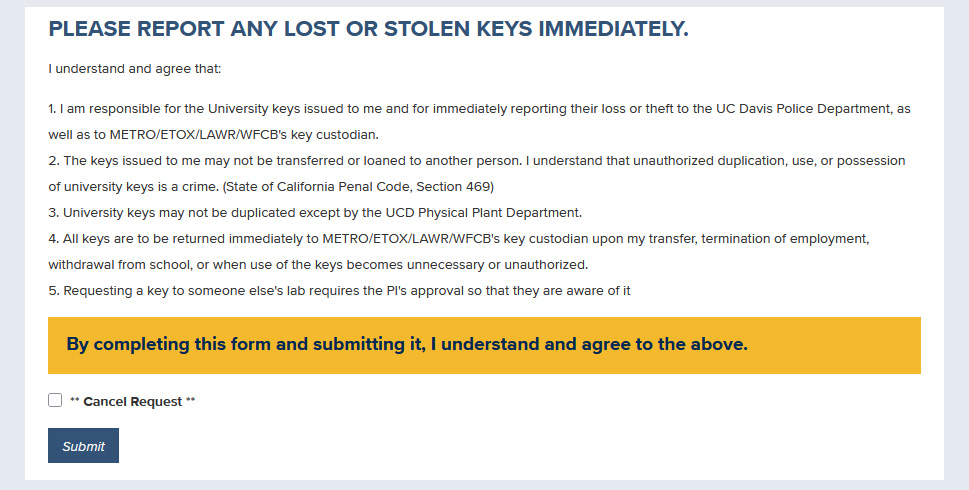
Please click Submit to complete the approval process. You can also check the Cancel Request box if you wish to cancel the request followed by clicking Submit.
- You will receive a confirmation email and Key Admins will be notified if keys need to be disbursed. You can keep track of requests where you are the Key User or Supervisor at https://internal.metro.ucdavis.edu/index.php?showpage=keyrequests
Key Form Flowchart: https://www.metro.ucdavis.edu/key-request-flowchart
If you have any issues or questions regarding keys, please email [email protected].